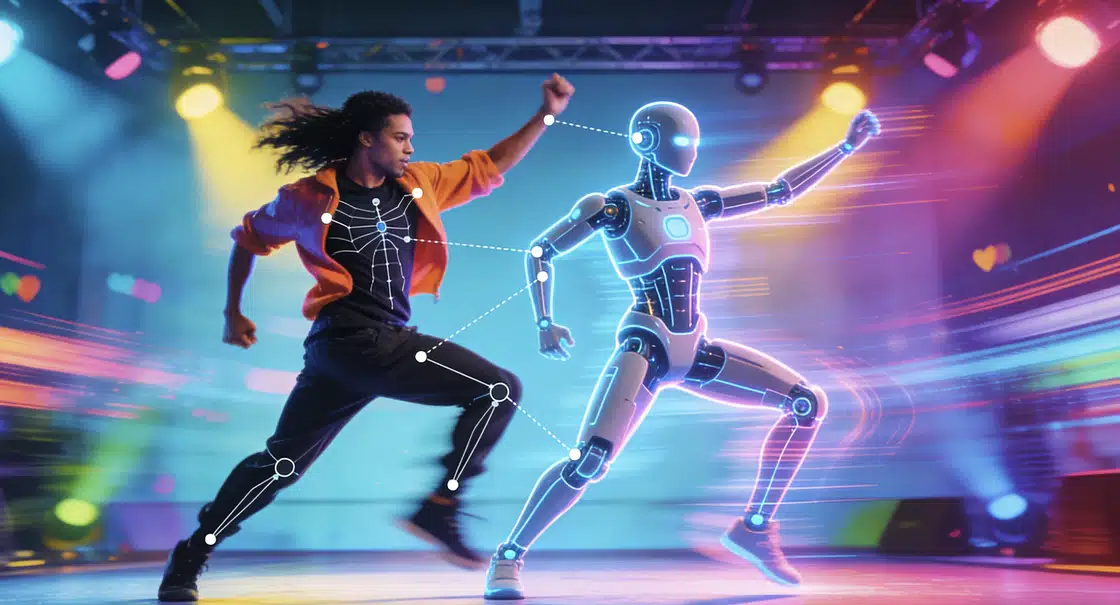
AI Video Generation Keeps Messing Up Motion – Here's How to Actually Fix It
If you've spent any time prompting AI video generators, you've run into this: the scene looks great in the first frame, then something crawls across the background, a character's hand teleports, or the camera drifts in a direction you never asked for.
It's one of the most frustrating parts of working with AI video right now, and "just re-generate" isn't a real answer when you're burning credits or compute time.
Here's a practical breakdown of why AI video motion goes wrong and what you can actually do about it.
Why AI Video Motion Goes Wrong
1. Prompt under-specification
Most AI video models treat motion as an afterthought unless you're explicit. A prompt like "a castle at sunset" tells the model nothing about what should be moving, how fast, or in which direction. The model fills the gap with whatever pattern was most common in training data – which is usually gentle ambient drift, or worse, random flickering.
Fix: Add explicit motion descriptors. Not just "camera pan" but "slow left-to-right camera pan, foreground rocks static, background clouds drifting right." The more you describe the relative motion between layers, the less the model guesses.
2. Temporal coherence breaking down after ~3 seconds
Most current video diffusion models are trained on short clips. They maintain coherence well for the first couple of seconds, then the internal "memory" of where objects were starts to degrade. You'll notice this as subjects gradually changing shape or drifting position by the end of a 6-second clip.
Fix: Work in shorter segments and stitch them together. Generate 2–3 second clips and use the last frame as the reference image for the next. It's tedious but the motion consistency is dramatically better.
3. No physical understanding of inertia
AI video models don't simulate physics. They predict pixels that look plausible frame-by-frame, but they have no concept of momentum. This is why a swinging pendulum will suddenly reverse direction, or a thrown ball will curve in an arc that violates gravity.
Fix: For any motion that depends on physics, use reference video or provide very tight frame-by-frame descriptions. Some tools let you draw motion paths; use them.
The Motion Control Layer Most Creators Skip
One pattern that comes up repeatedly among people doing professional-quality AI video work is explicitly separating what moves from how it moves before you ever touch a prompt.
This sounds obvious but in practice most people just describe the subject and hope the model figures out the motion. The ones getting consistently clean results are using dedicated motion control workflows – either through ControlNet motion adapters, or tools designed specifically for this problem.
For Kling-based workflows, kling ai motion control is worth bookmarking. It lets you draw camera trajectories and subject movement paths directly before generation, so the model receives explicit spatial constraints rather than inferring motion from your text description alone. The difference in temporal consistency is noticeable, especially for anything longer than 3 seconds or involving a moving camera.
Practical Checklist Before You Generate
Work through these before hitting generate:
Prompt layer
- Name every moving element and describe its direction and speed
- Specify camera movement separately from subject movement
- Include what should not move (e.g., "background buildings static")
Reference layer
- Use a reference image that matches the starting pose/position you want
- If the model supports end-frame reference, set that too – it constrains where motion ends up
Duration
- Keep clips under 4 seconds for complex scenes; under 6 seconds for simple ones
- Chain clips rather than generating long single takes
Post-generation
- Use frame interpolation (FILM, RIFE) to smooth out jitter rather than re-generating
- For minor drift, a subtle stabilization pass in DaVinci or After Effects is faster than another generation
What About "Motion Score" Settings?
Several AI video tools expose a motion intensity or "motion score" slider. The instinct is to crank it up for dynamic scenes. Usually that's a mistake.
High motion scores increase quantity of motion, not quality. You get more pixels changing between frames, which often manifests as background noise, flickering textures, and over-animated elements that should be still. The sweet spot for most scenes is a moderate score paired with explicit motion description, rather than a high score and vague prompts.
The Honest State of Things
AI video motion is genuinely hard and no tool has fully solved it yet. The models are improving quickly – what required careful multi-step workflows six months ago is becoming more automatic. But right now, the creators getting clean, intentional motion out of AI video are the ones treating motion design as a first-class part of the workflow, not something the model will sort out on its own.
The techniques above won't eliminate every artifact, but they move you from "re-generate until something decent happens" to "produce predictable results on the first or second try." That shift is what separates people using AI video as a toy from people using it as a production tool.